React Three Fiber (R3F from here on) is a React renderer for three.js. Its defining feature is that you build scenes declaratively out of React components.
At its most minimal, JSX like this is enough to place a 3D object in a scene:
<Canvas>
  <mesh>
    <boxGeometry />
  </mesh>
</Canvas>
Setting up for R3F
We’ll use Vite this time, so start with create vite:
❯ pnpm create vite

✔ Project name: … r3f-getting-started
✔ Select a framework: › React
✔ Select a variant: › TypeScript + SWC

Done.
Next, install the packages R3F needs:
pnpm add three @types/three @react-three/fiberThat’s all the setup.
Placing a 3D object
We’ll place a 3D object using the src/App.tsx that create vite generates.
First, adjust the CSS a little. Make src/App.css look like this:
html,
body,
#root {
  width: 100%;
  height: 100%;
  margin: unset;
  background-color: #09090e;
}
Then change src/App.tsx as follows (details below):
import './App.css';

import { Canvas } from '@react-three/fiber';

function App() {
  return (
    <Canvas>
      <mesh>
        <boxGeometry />
      </mesh>
    </Canvas>
  );
}

export default App;
This places an object like so:
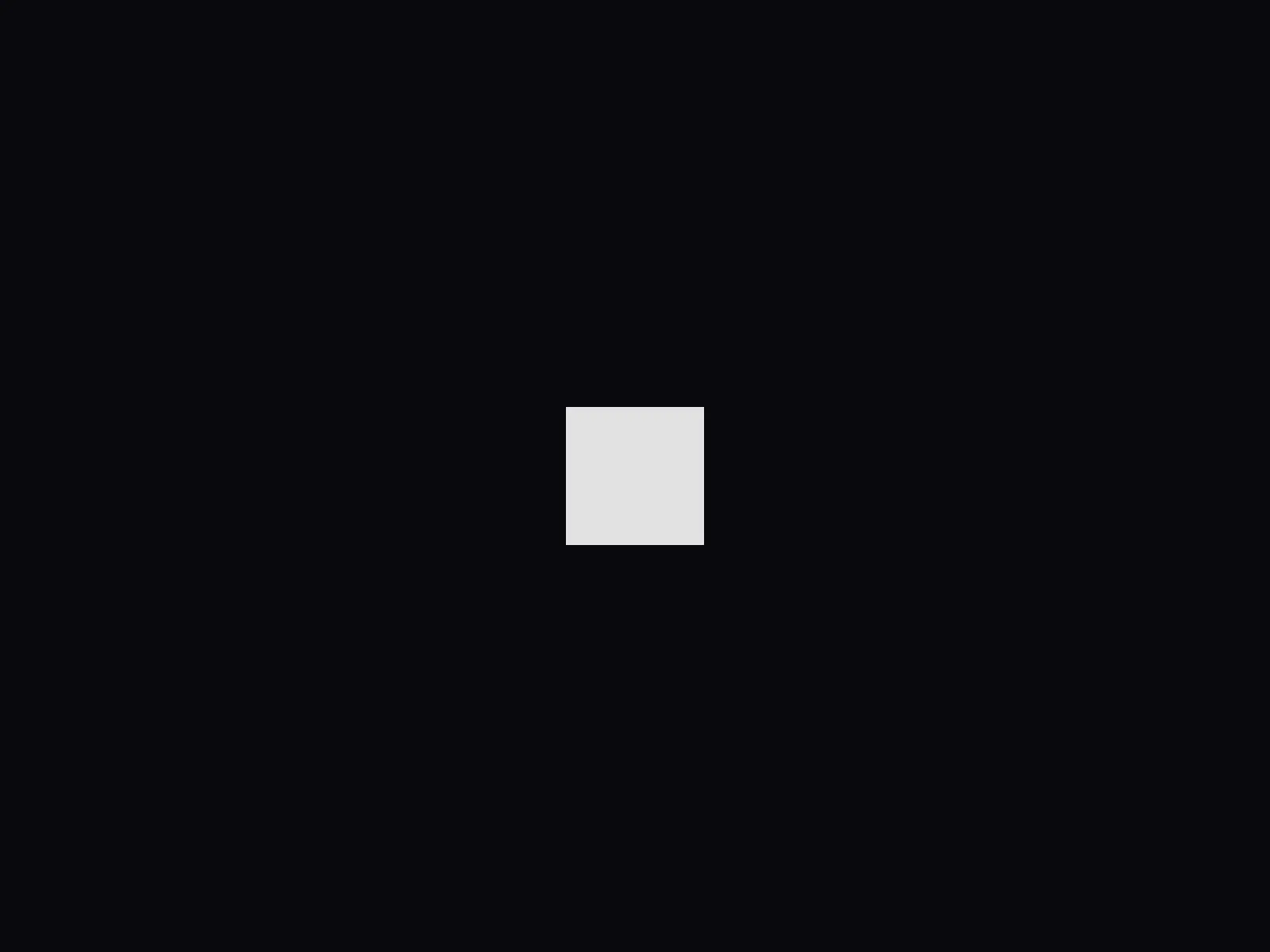
It looks flat, but it really is a 3D object. Let’s rotate the mesh 45° — in R3F you can set values through props:
<Canvas>
  <mesh rotation-y={Math.PI / 4}>
    <boxGeometry />
  </mesh>
</Canvas>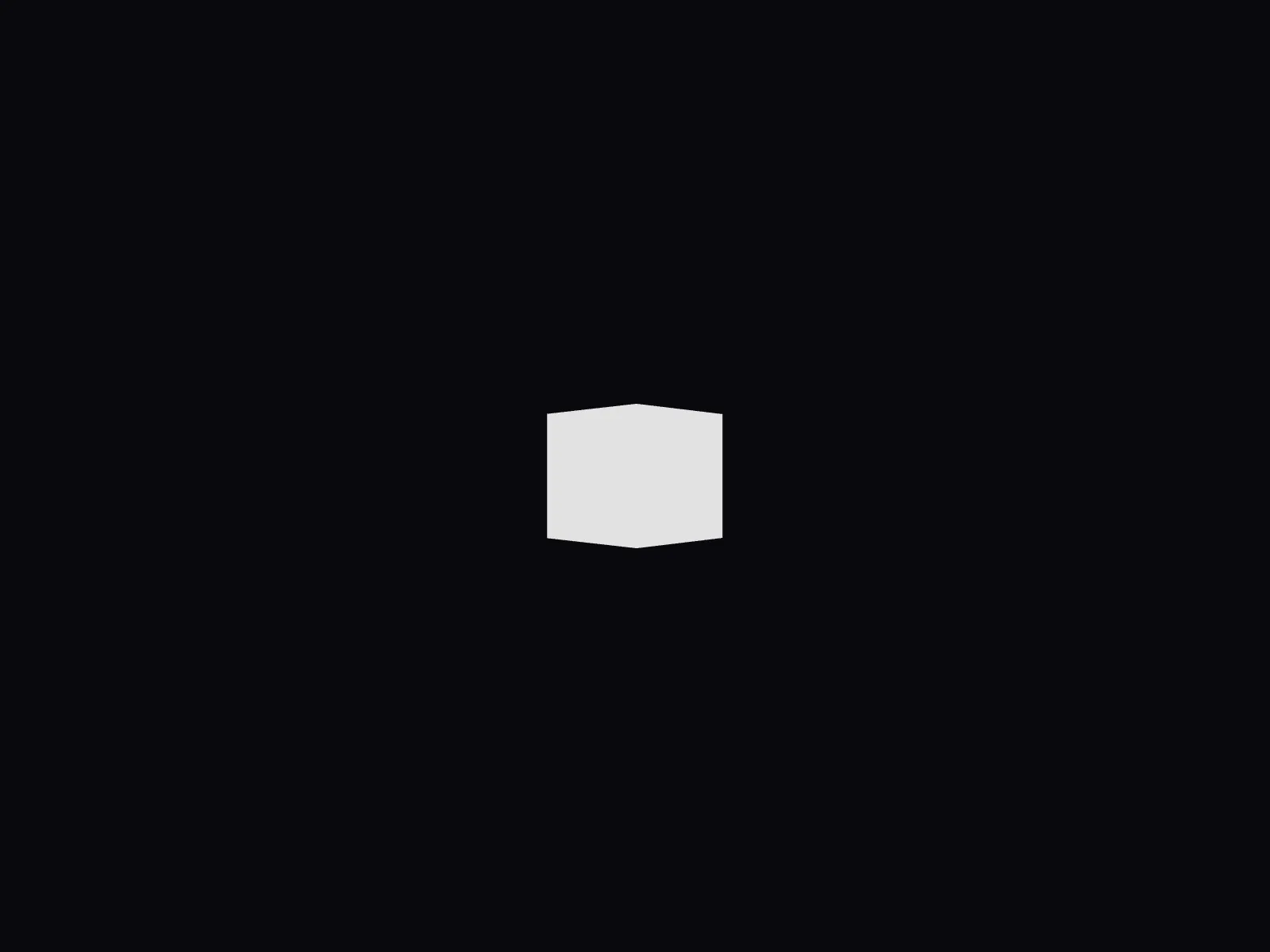
Now that we’ve placed an object, let’s walk through the <Canvas /> component and the other pieces we added to App.tsx.
The <Canvas /> component
The <Canvas /> component imported from @react-three/fiber is what defines an R3F scene, and behind the scenes it does two things for you:
- Sets up the scene and camera, three.js’s basic building blocks
- Renders the scene every frame
In plain three.js, you’d have to instantiate the scene and camera yourself and write the requestAnimationFrame() loop to render each frame. In R3F, <Canvas /> alone takes care of it.
R3F ships with sensible defaults, which is why placing a 3D object is so easy. You can see exactly what’s configured at Canvas - React Three Fiber.
Fiber components
Things like <mesh /> and <boxGeometry /> are called Fiber components in the documentation. R3F treats them as native JSX elements.
That means there’s nothing to import — you use them just like you’d use a <div />.
As a naming rule, a Fiber component is basically the camelCase version of the three.js object: Mesh → mesh, BoxGeometry → boxGeometry, and so on.
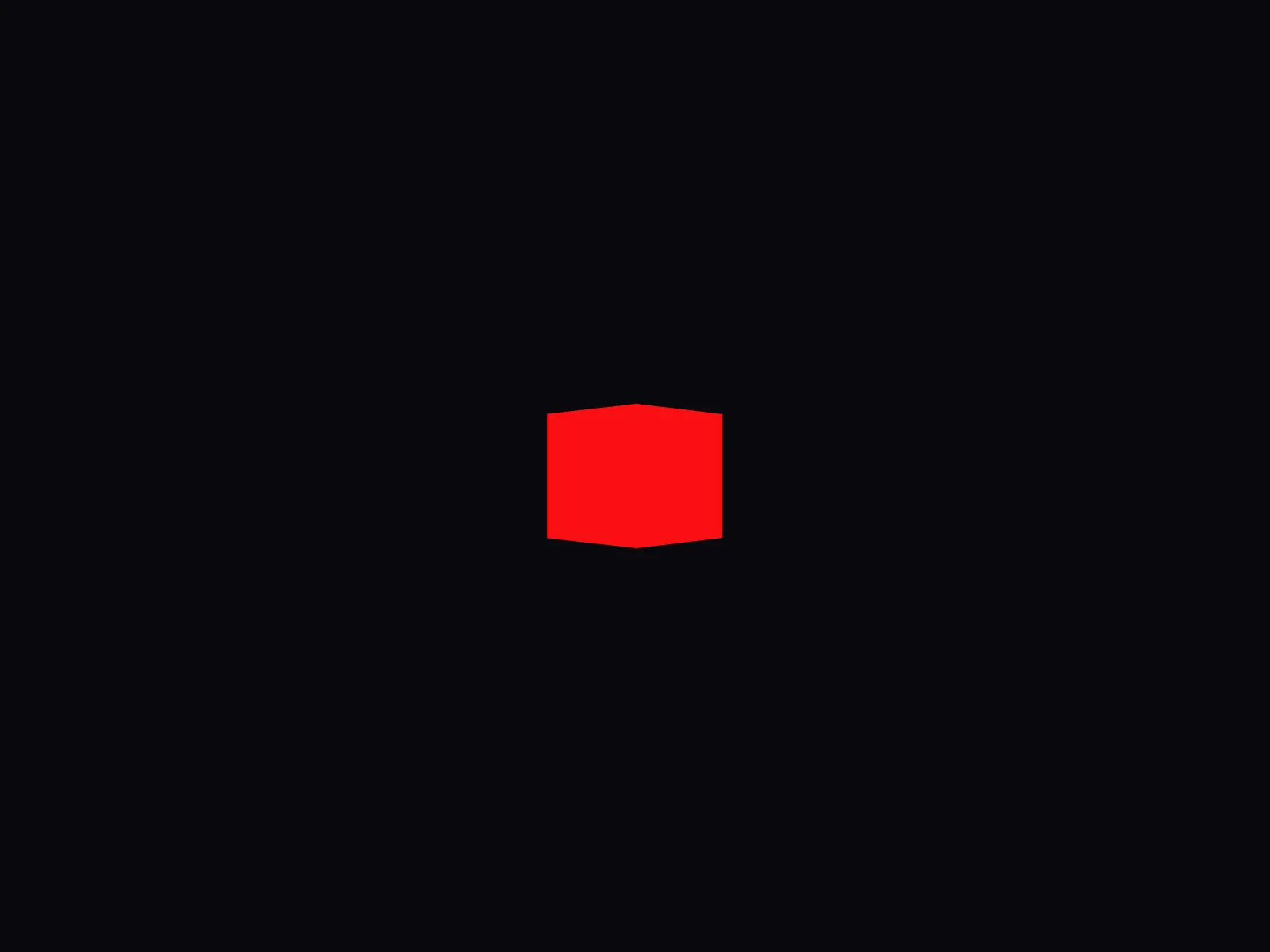
Let’s add a new Fiber component and change the cube’s color:
<Canvas>
  <mesh rotation-y={0.8}>
    <boxGeometry />
    <meshBasicMaterial color="red" />
  </mesh>
</Canvas>
In three.js, you set geometry and material when instantiating a Mesh; in R3F, you just write them as children of <mesh /> and they’re attached automatically.
The cube turns red:
Adding a light and changing the object
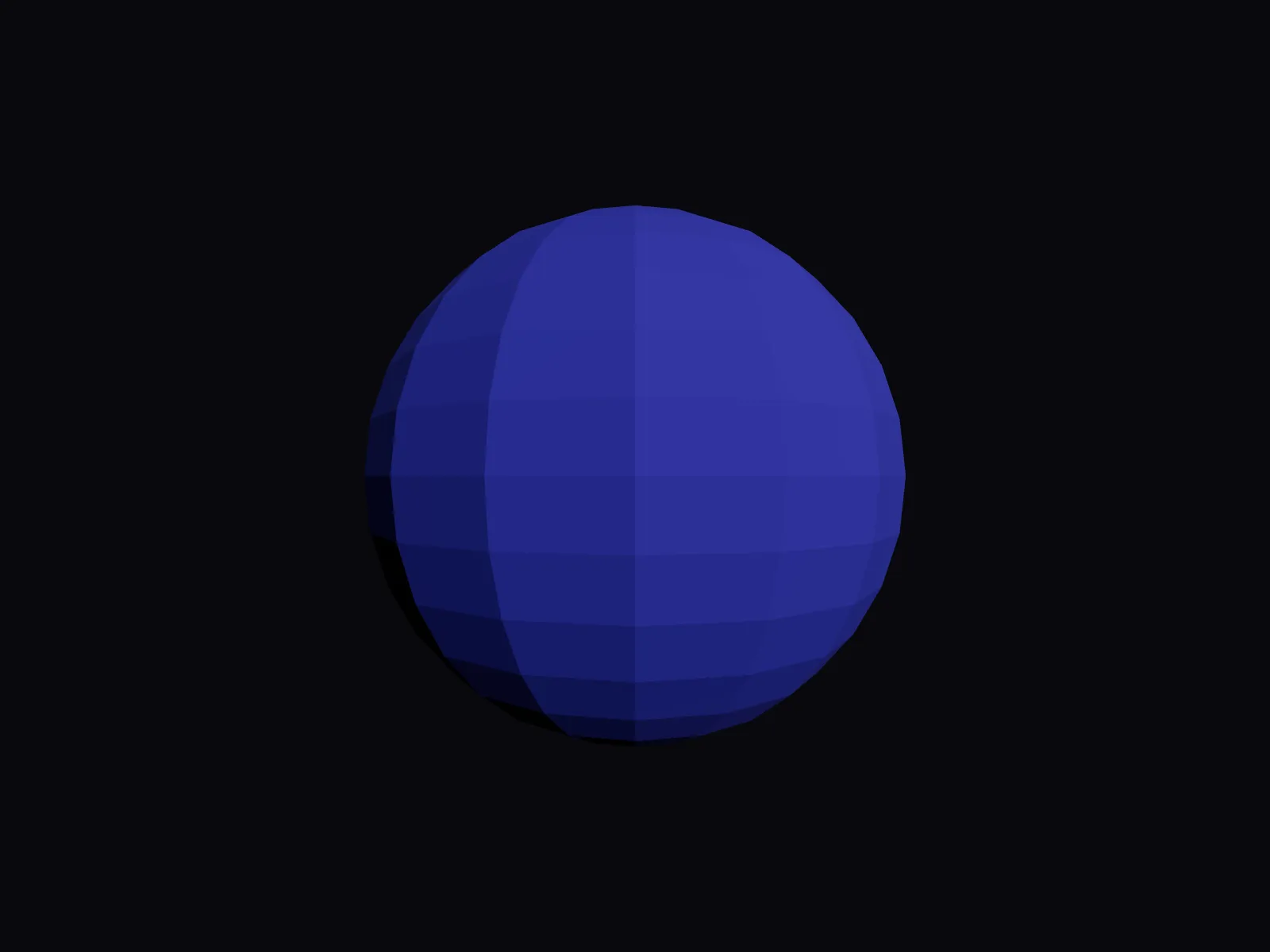
It’s a bit plain so far, so let’s add a light and swap out the geometry and material.
Add a DirectionalLight, and use SphereGeometry and MeshStandardMaterial as children of <mesh />:
<Canvas>
  <directionalLight args={['white', 1.5]} position={[0.5, 0.5, 1]} />
  <mesh>
    <sphereGeometry args={[2, 16, 16]} />
    <meshStandardMaterial color="#5B5BD6" flatShading />
  </mesh>
</Canvas>
The args prop takes an array of whatever the corresponding three.js constructor accepts. Other properties can be set by passing values to the matching prop.
That gives us a sphere like this:
Adding animation
To animate, we need to set the mesh’s position, rotation, and so on to different values every frame.
R3F provides the useFrame Fiber hook for running code on every frame.
Using useFrame
First, extract the sphere into its own component so we can use useFrame:
function App() {
  return (
    <Canvas>
      <directionalLight args={['white', 1.5]} position={[0.5, 0.5, 1]} />
      <Sphere />
    </Canvas>
  );
}

function Sphere() {
  return (
    <mesh>
      <sphereGeometry args={[2, 16, 16]} />
      <meshStandardMaterial color="#5B5BD6" flatShading />
    </mesh>
  );
}

export default App;
Next, import useFrame from @react-three/fiber and use it in the <Sphere /> component:
import './App.css';

import { Canvas, useFrame } from '@react-three/fiber';

// ...

function Sphere() {
  useFrame(({ clock }) => console.log(clock.elapsedTime));
  return (
    <mesh>
      <sphereGeometry args={[2, 16, 16]} />
      <meshStandardMaterial color="#5B5BD6" flatShading />
    </mesh>
  );
}

export default App;
The callback passed to useFrame() runs every frame. It receives the state properties, and here we’re pulling clock out of them — this corresponds to three.js’s THREE.Clock.
clock.elapsedTime holds the total time since the clock started running. The code above just logs it every frame.
In the next step, we’ll use this value to drive the rotation of the <mesh />.
Getting a reference to the mesh with useRef
In React, updating a component usually means changing state — but for continuous updates like animation, re-rendering the component every frame is bad for performance.
Instead, we grab a reference to the element we want to animate with useRef and mutate its properties directly.
Import useRef from React and use it in the <Sphere /> component. Note that useRef needs an explicit type here (see Using with TypeScript - React Three Fiber):
import './App.css';

import type { Mesh } from 'three';

import { useRef } from 'react';
import { Canvas, useFrame } from '@react-three/fiber';

// ...

function Sphere() {
  const meshRef = useRef<Mesh>(null);

  useFrame(({ clock }) => console.log(clock.elapsedTime));

  return (
    <mesh ref={meshRef}>
      <sphereGeometry args={[2, 16, 16]} />
      <meshStandardMaterial color="#5B5BD6" flatShading />
    </mesh>
  );
}

export default App;
With a reference to the mesh in hand, change the useFrame() callback like this:
function Sphere() {
  const meshRef = useRef<Mesh>(null);

  useFrame(({ clock }) => {
    if (!meshRef.current) return;
    meshRef.current.rotation.y = clock.elapsedTime * 0.3;
    meshRef.current.rotation.z = clock.elapsedTime * 0.2;
  });

  return (
    <mesh ref={meshRef}>
      <sphereGeometry args={[2, 16, 16]} />
      <meshStandardMaterial color="#5B5BD6" flatShading />
    </mesh>
  );
}
And with that, the sphere rotates:
Cool, right?
Wrapping up
R3F makes everything from placing 3D objects to animating them remarkably easy.
Personally, what I love about it is getting a satisfying result without sinking much time in.
When results are slow to come, motivation to learn drains away — but with R3F you’re saying “whoa!” and “this is fun!” almost immediately.
Those positive feelings feed your curiosity, and as you keep exploring, your three.js knowledge grows along the way.
You do need a foundation in React, but if you have that, I think it’s completely valid to skim Creating a scene – three.js docs for the three.js basics and then learn three.js by playing with R3F.
Update (2025-02-16): I wrote a follow-up to this post 👉🏼 Using hover, click, and other events in React Three Fiber